
Download Virtual VCR – Free Video Capture Software for Windows (GPL)
Virtual VCR is a lightweight, free video capture tool designed exclusively for Windows users. This powerful yet simple software allows you to record video and audio from any connected device—whether it's a VHS player, camcorder, or analog TV tuner—directly to your computer. With a minimal footprint and straightforward interface, Virtual VCR is ideal for users who want to digitize old VHS tapes, archive home videos, or capture live broadcasts without the need for expensive hardware.
Despite being last updated in 2011, it remains a reliable choice for legacy systems and analog video enthusiasts. The software is open-source under the GPL license, ensuring transparency and freedom to use, modify, and distribute. It supports older Windows versions, including Windows 2000 and Windows 98, making it accessible even on outdated systems.
With over 65,000 downloads since 2011, Virtual VCR has built a loyal user base in countries like Indonesia, Canada, and Pakistan. Whether you're preserving family memories or working on retro media projects, this free tool delivers solid performance with minimal system requirements.
Key Features of Virtual VCR
Virtual VCR offers a streamlined set of features tailored for analog video capture, making it a go-to tool for users with legacy media. One of its standout features is its ability to capture video and audio from any standard analog input source, including composite, S-Video, and RF connections. This versatility allows you to connect VHS players, camcorders, DVD players, or even old television tuners directly to your PC via a capture card or USB adapter. The software supports real-time preview, so you can monitor your input signal before starting a recording session, ensuring optimal quality.
Another notable feature is its support for multiple video formats, including AVI and MPEG, which makes it easy to store and share your digitized content. The interface is clean and intuitive, with playback controls that mimic a traditional VCR—play, pause, stop, fast forward, and rewind—giving users a nostalgic yet functional experience. Virtual VCR also includes basic editing tools such as trimming and splitting clips, allowing you to remove unwanted sections without needing additional software.
Being open-source under the GPL license, the software is completely free to use, modify, and redistribute. This ensures long-term accessibility and community-driven improvements. Additionally, the program is lightweight, consuming minimal RAM and CPU, which is perfect for older machines or systems with limited resources.
It’s also compatible with a wide range of capture hardware, including USB video grabbers and PCI capture cards, making it a flexible solution for various setups. For users who value privacy and control over their data, the fact that no telemetry or ads are included adds to its appeal. Whether you're a hobbyist archiving old home videos or a retro media collector, Virtual VCR delivers essential functionality without unnecessary bloat.
Installation & Usage Guide
Installing Virtual VCR is straightforward, especially for users familiar with older Windows systems. First, ensure your computer has a compatible analog video capture device—such as a USB video grabber, PCI capture card, or an old TV tuner—connected and properly recognized by your system. Most modern Windows versions (including Windows 2000 and later) will detect the device automatically, but you may need to install drivers if prompted.
Next, download the latest version of Virtual VCR (2.6.9) from a trusted source. Since the software is free and open-source, you can find it on reputable repositories like SourceForge or the official project page. Once downloaded, run the installer and follow the on-screen prompts. The installation process is quick and requires no advanced configuration. After installation, launch the program to access the main interface, which resembles a classic VCR with playback controls.
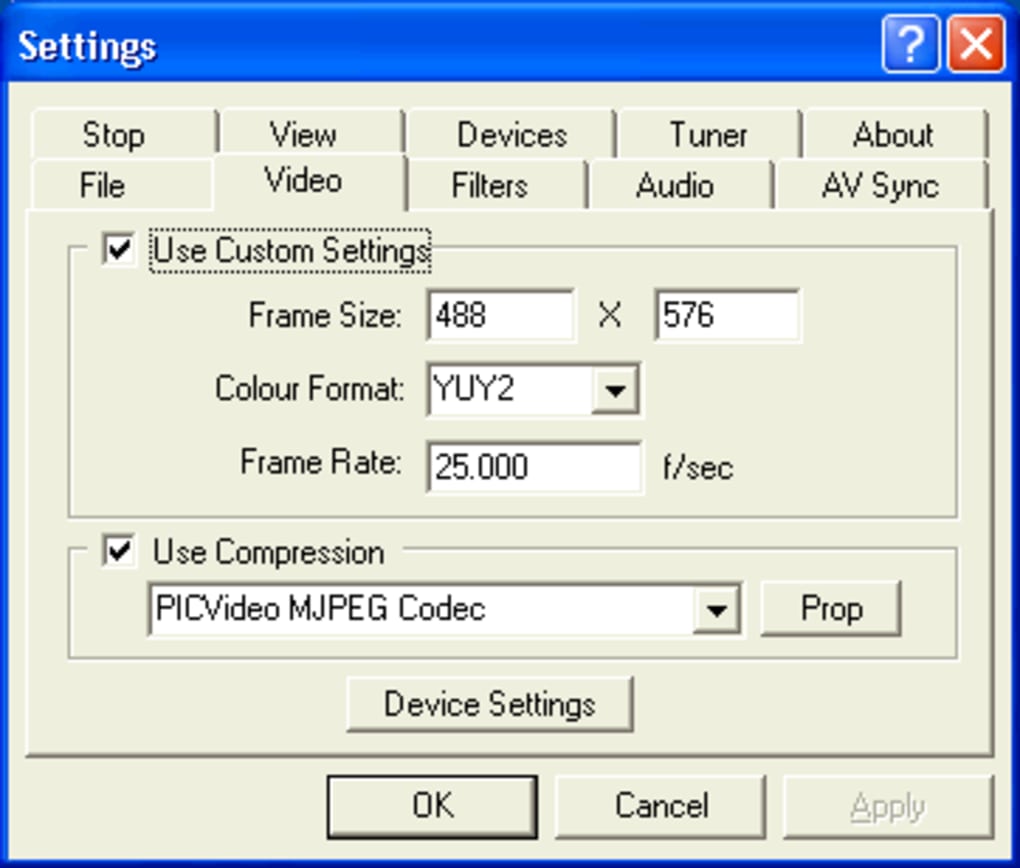
To begin capturing, click on the “Capture” button and select your input source from the dropdown menu. You’ll see a live preview of the video signal. Adjust settings like video quality, format (AVI or MPEG), and output folder before starting. Press the “Record” button to begin capturing. The software records in real-time, and you can stop at any time by clicking “Stop.” Post-capture, you can use the built-in trimming tools to cut unwanted parts, save the file, and even export it to other formats using external converters.
For best results, use high-quality cables and ensure your analog source is in good condition. If you’re capturing from VHS tapes, clean the heads of your VCR before recording to minimize noise. Virtual VCR doesn’t offer advanced features like noise reduction or auto-color correction, so preparing your source material is key. Despite its age, the software remains stable and reliable on supported systems, making it a dependable choice for analog-to-digital conversion.
Compatibility & System Requirements
Virtual VCR is designed specifically for Windows operating systems, with full support for Windows 2000 and earlier versions, including Windows 98. This makes it a unique choice for users still running legacy hardware or older PCs that can’t support modern video editing software. While it may not work on Windows 10 or 11 out of the box due to changes in driver architecture and API support, users with older systems or those using virtual machines (like VirtualBox or VMware) can still run it successfully.
The software has minimal system requirements, which is one of its biggest advantages. It typically uses less than 50 MB of disk space and requires only a basic CPU and 128 MB of RAM to operate smoothly. This low footprint ensures that even older machines with limited resources can handle video capture tasks without performance issues. The program is also compatible with a wide range of analog capture devices, including USB video grabbers (such as the Hauppauge WinTV-PVR or Dazzle), PCI capture cards, and composite/S-Video input adapters.
For users on modern systems, running Virtual VCR in a virtual environment is a viable workaround. By setting up a Windows 98 or Windows XP virtual machine, you can install and use the software without affecting your primary OS. This approach is particularly useful for digital archiving projects involving VHS or Beta tapes. While the software hasn’t seen an update since 2011, its stability and compatibility with older hardware have made it a trusted tool for years. The fact that it’s open-source under the GPL license means the community can continue to maintain and adapt it for future use, ensuring its longevity beyond official support.
Pros and Cons
- Pros:
- Completely free and open-source under the GPL license
- Lightweight with minimal system resource usage
- Supports multiple analog input sources (composite, S-Video, RF)
- Simple, intuitive interface with VCR-style controls
- Compatible with older Windows systems (2000, 98)
- No ads, no telemetry, and no hidden data collection
- Supports AVI and MPEG output formats
- Stable and reliable for long-term use
- Cons:
- Not compatible with Windows 10/11 without virtualization
- Outdated interface with no modern UI updates
- Limited to analog video capture only
- No built-in noise reduction or color correction
- Latest update was in 2011; no official support or bug fixes
- Requires external capture hardware for functionality
Frequently Asked Questions (FAQ)
Is Virtual VCR safe to download and use?
Yes, Virtual VCR is safe to download and use. It is open-source software released under the GPL license, meaning its code is publicly available for review. It does not contain malware, ads, or tracking tools. Always download from official or trusted sources like SourceForge to ensure you get the authentic version.
Can I use Virtual VCR on Windows 10 or 11?
Virtual VCR was designed for older Windows versions and may not run natively on Windows 10 or 11. However, you can run it in a virtual machine using software like VirtualBox or VMware with Windows 98 or XP installed. This method allows you to use the software on modern systems without compatibility issues.
What kind of hardware do I need to use Virtual VCR?
You need an analog video capture device such as a USB video grabber, PCI capture card, or an old TV tuner with composite/S-Video inputs. The device must be compatible with Windows 2000 or earlier. Most modern USB video capture adapters support older OS versions, but check the manufacturer’s specs before purchasing.
Does Virtual VCR support digital video capture?
No, Virtual VCR is designed exclusively for analog video capture. It does not support HDMI, DVI, or digital TV signals. For digital capture, you’ll need a different software like OBS Studio or a dedicated digital capture card.
Can I edit videos after capturing with Virtual VCR?
Yes, Virtual VCR includes basic editing tools such as trimming and splitting clips. You can remove unwanted sections directly within the software. For more advanced editing, export the file to a video editor like DaVinci Resolve or VLC Media Player.
Final Verdict & Call to Action
Virtual VCR remains a surprisingly effective tool for digitizing analog video content, especially for users with older systems or a need to preserve VHS and Beta tapes. While its age is evident in the interface and lack of recent updates, its core functionality is rock-solid. The software is lightweight, free, and open-source, making it a secure and ethical choice for retro media projects. Its compatibility with legacy hardware and minimal system demands ensure it continues to serve niche but vital use cases.
If you’re looking to preserve family memories, archive old home videos, or work with analog media, Virtual VCR is worth downloading. Despite not being updated in over a decade, its stability and community support keep it relevant. For modern users, running it in a virtual machine is a simple workaround. Don’t miss this free, reliable video capture solution—download Virtual VCR today and start preserving your analog past.
Download Virtual VCR now—free, secure, and perfect for Windows users preserving analog video content.







